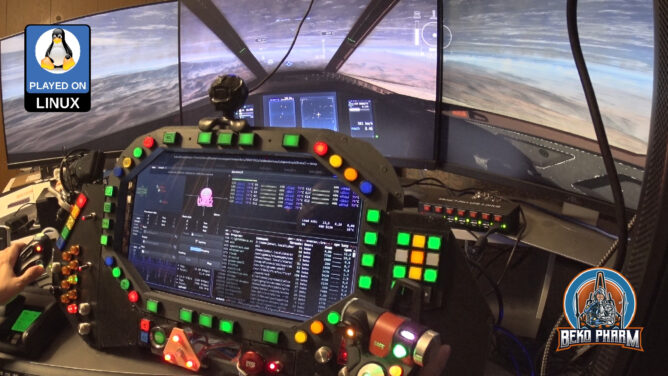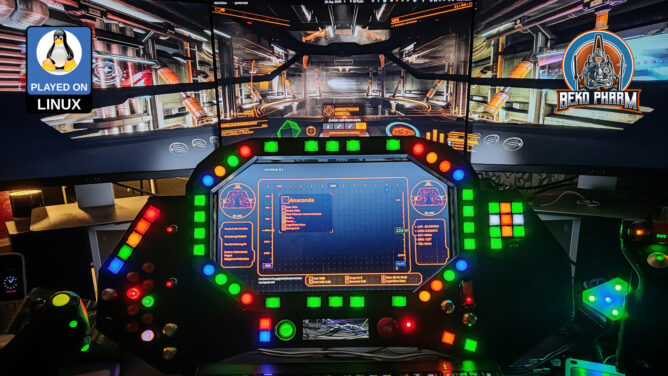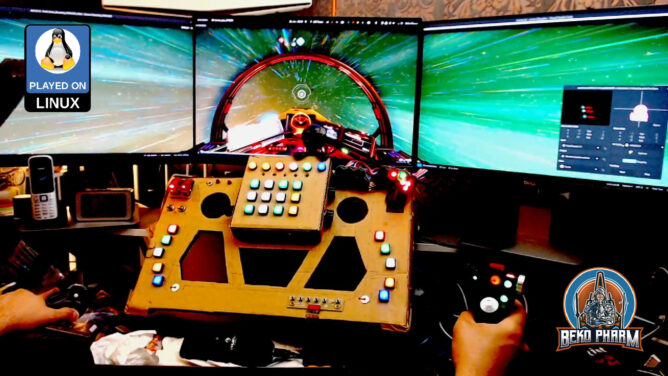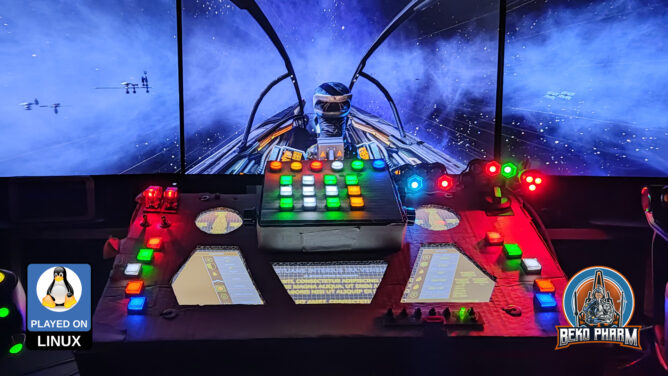
Finally replaced the old display with a new touch display in my VF-1 inspired home cockpit panel.

The old display was salvaged from a laptop years ago and while it was working fine it also has a very bad viewing angle. I also got really tired of it’s glaring reflections so I experimented with an anti glare foil. This reduced the reflections a lot (worth every cent) but couldn’t help with the bad viewing angle, of course. I now had an idea how this could look though so I decided to buy into a replacement kit.

The new display is the N173HCE-E31, a 17.3" with a resolution of 1920x1080. The touch controller registeres as a USB HID pointer/mouse by ILITEK and is basically sitting on top of the display. The kit included a PCB, that was advertised as VS-RTD2556HC-V2 controller by VSDISPLAY but came without any data sheet and I have no idea who really made this.

Thing is this PCB runs very hot and the noted input voltage isn’t explicitly stated. An attached image suggested to use an USB PD power supply without 20V so I was looking for it’s datasheet to check if I was just holding it wrong. Picture me surprised but VSDISPLAY does not list this particular configuration in it’s datasheets. I contacted them via mail and they confirmed that this is not theirs. Theirs is apparently also strictly 5V/12V so that matches the picture I get.

Mine is equipped with the IC RTD2556VD that does not match the list of supported ICs. Theirs has 2556TE_R20.1 printed on the PCB. Mine has 2555TF_R30.1 printed on. It’s like 99% similar but differently routed. It also mentions E470791 JPX-D which seems to point to the PCB manufacturer Dongguan Jingweixin Circuit Co Ltd but that is where my GoogleFu left me. I did also find the very same pictures on other offers, each stating a completely different controller model 🤷

Anyway. I tried different configurations and while it works with 5V at ~2A I feel way more comfortable with 12V at ~0.8A on full brightness + blue color. I also attached a passive cooling block I had laying around and slapped a fan on top. Now it’s only “comfortable” warm to the touch after running for an hour.

Sadly I do not have any device with DP ALT providing more than 5V and the PCB will always switch down to 5V the moment the USB-C dedicated for the display signal is used as well, even when a proper USB PD power supply is attached on it’s dedicated power connector. I could only keep it at 12V with my VITURE USB-C XR charging adapter, which can indeed provide 12V and more via USB-C while still allowing DP-ALT + USB2. There went my plans to only have a single cable for all, DPPD and the USB2 lanes for the ILITEK pointer, because I really do not want to block this adapter all the time.

So now I have a dedicaded USB PD power supply at 12V connected, a HDMI connection for the display and an additional USB2 for the touchpanel pointer – and on top of that the little fan, that I simply connected to the micro USB2 socket on the PCB to provide it with 5V.

This also means that my Linux PC can not know that both, touch panel pointer and display, belong together. As a result all touch panel inputs were all over the place and not limited to a single display. Apparently KDE has an option in it’s graphical settings where this can be easily configured. Gnome does not [yet?] have such an option in it’s graphical settings. There is however a way to enforce the mapping of the touch panel in Gnome too! And while the real manufacturer for the controller of the new display is still a mystery to me I found the following snippet in my monitor configuration $HOME/.config/monitors.xml after plugging the controller in:

<monitorspec>
    <connector>HDMI-2</connector>
    <vendor>RTK</vendor>
    <product>0x2555</product>
    <serial>0x20230705</serial>
</monitorspec>

The touch panel is, according to lsusb, connected as ID 222a:0001 ILI Technology Corp. Multi-Touch Screen. Armed with that knowledge I can limit it’s input with gsettings to this specific display:

gsettings set org.gnome.desktop.peripherals.touchscreen:/org/gnome/desktop/peripherals/touchscreens/222a:0001/ output "['RTK', '0x2555', '0x20230705']"

Works like a charm but what a mess. I still wish I had a data sheet for this so if you know more kindly drop me a comment!

The last thing to fix was the already mentioned reflective glare. For this I went with a screen protector by BROTECT (that name still makes me laugh), that promises beside anti scratch also an anti glare effect without limiting the view angles (some foils do this to enhance privacy).

Attaching the foil was straight forward. The trick is to make sure that not a single dust particle is around during the process. To help with this I used an air humidifier to raise the humidity in the room before I even started. After that I removed the protective cover from the display and started slapping on the foil with the provided mounting card (yay, cardboard again). This was the very moment one of my curious cats decided to investigate my actions and jumped onto the table almost giving me a heart attack. The last thing I needed was cat hair all over the place and indeed after a lot of hissing I had to make good use of the also provided adhesive sticker to catch all dust particles in the last corner. Cats!

The end result is like night and day. I do no longer see any light sources or myself clearly reflected on the display. The touch panel is still accepting inputs just fine and the colours look very bright from any angle, especially with HDR enabled. This will also ease it’s cleaning because the cockpit panel is collecting dust like crazy due to the gradient of the panel. I usually use a vacuum cleaner for this and the foil will help a lot to avoid scratches.

Replacing the old display was also a task on it’s own. The old screws didn’t fit, of course, so I kinda had to build little adapters from leftover angle and wood pieces. Very ugly but good enough – this is just a toy after all 🤓

Ah yes and now that I have a touch panel I also have to rewrite my HUD app, of course 🙃

So what happens when sheer stubbornness, a glorified button box, Ace Combat and the Unreal Engine Scripting System meet? Pure magic. I got the game to spew out a constant stream of telemetry data and events in search for more immersion in my VF-1 inspired home cockpit. The approach is the very same that I used for X4 Foundations before: Side load lib Luasocket, get a network connection established and start dumping extracted game data to it. This is highly experimental and the result of hacking away for the last ~4 nights. This video demonstrates the results:

https://makertube.net/w/cbXJAveVgVTGVEi58akVTA / https://www.youtube.com/watch?v=50J-gjkgJxE

To be perfectly clear: I am aware that Ace Combat is not a “flight sim”, not really worth of an API, and I know that DCS or BMS does it better and in greater detail and even with realism. This is not the point. I started working on this just for fun and to satisfy my own curiosity to see *if I can make it*. This may be hard to believe but chipping rocks together until the computer does what I want is “quality time” for me 🤓

You may have noticed that I’m a Macross fan and that my SimPit is heavily inspired by a VF-1 Valkyrie and that I usually use a modded VF-1 plane in AC as well. This is my personal substitute for the lack of any decent Macross / Robotech game since Macross VOXP.

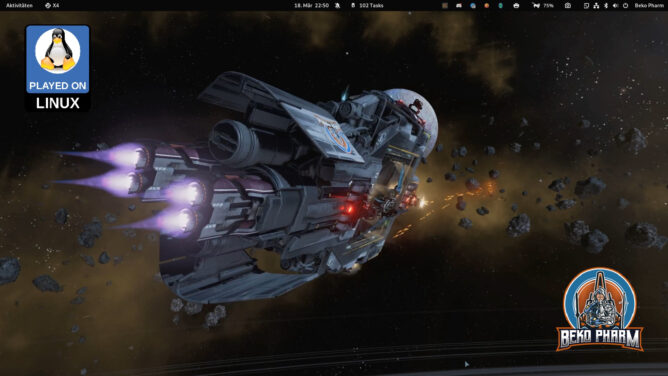
This said I usually fly Space Pew Pew games with this cockpit so everything you see going on is designed for _space_ and not for flight sim. This is also why I sometimes talk about “ships” or “docked”. This is wording found everywhere in my plumbing pipeline for telemetry. All games I play, that can use this, send their data over this. The idea is that I do not have to rewrite half of the connected systems for every game so I transform the data into a unified format before.

You can read more about this on the dedicated project website https://simpit.dev (and here, of course). I will soon update it with some more details for Ace Combat. If this looks like something you’d like to try let me know, I’d love to connect. I’m active on various social media. Please do let me know if you find this inspiring.

This is Project Wingman mission 01 Black Flag played on a Linux PC with Proton Experimental, OpenTrack with the Neuralnet Tracker plugin and my DIY HOTAS / rudder system based on Arduino Pro Micros replacing the original electronics in my Thrustmaster FLCS/Cougar gear:

Pick your poison: https://makertube.net/w/8MyoVSzDfwMuQR6bCqtbie / https://www.youtube.com/watch?v=dq0sihlgW_Y

I got Project Wingman on a sale months ago and I finally gave it a try. As an Ace Combat player I felt right at home. My initial experiment was with the XR glasses and woah that feels good in 3D and all but today I remembered that old Plasma TV in the basement. Got it second hand a year ago for dead cheap. Today I brought it upstairs to try it with the ViperPit and now I’m not sure what’s more awesome.

Well, that is if I feel like burning ~470W on top for that thing but hey this is for very specific gaming sessions only anyway 🤷

Guess I’ll spend more time in the ViperPit again 😀

This uses my X4-SimPit extension for X4: Foundations, that sends ship telemetry via a socket to my node-red plumbing pipeline, which in turn forwards data to Websockets, SocketIO and MQTT. Various subscriber listen on the new messages to run blinken lights and my HUD app. I’m using the well known message format also used by Elite Dangerous so it’s compatible with that game as well.

Pick your poison: https://makertube.net/w/nUoG2ZPeAW1QhT3A2BXRrM / https://www.youtube.com/watch?v=wp1PkVhH9cc

Oh yeah… and on Linux PC 🤓

Let me know what you think!

X4-SimPit code (pending changes) is here: https://github.com/bekopharm/x4-simpit
The cockpit panel has a dedicated project page here: https://simpit.dev/

Played (closed) Alpha with my ViperPit and with glasses. I’m simply in awe that I can replay missions from (or ) with more modern graphics and modern interface devices again. I spent _so many_ hours playing this as a kid.

This is the heavily cut VOD of the live stream over at https://live.famkos.net (pick your poison):

https://makertube.net/w/hW6cJeqBY42YoryJL1gRg5 /
https://www.youtube.com/watch?v=8at4P5rf-gE

I go over the input settings and show it’s capabilities to connected various joystick devices, demo the Proofing Grounds and showcase mission 1+2. In the end I go over various settings for the XWVM engine and how the machine hardly sweats displaying the gorgeous cockpit.

XWVM is not an official product from Lucasfilm Ltd. or Disney. It is not endorsed or authorized by either. It is a fan recreation of the game engine used to play X-Wing and TIE Fighter for the sake of accessibility and requires the original game assets to work.

The game was played with Pro XR running in Side-By-Side mode thanks to ReShade on a Linux PC.

Kudos to the XWVM team, they are doing a stellar job here.

Remember my proof concept to read IMU data of my glasses to ?

hodasemi wrote a connector based on the idea that works without : https://github.com/hodasemi/xr_to_opentrack_rs – comes with a systemd service file so it can run in the background.

Once installed the only step left to do is fire up OpenTrack 🤘😄🤘

So I was asked if my head tracking approach of reading the IMU data from my Viture Pro to OpenTrack and SBS (side-by-side) mode with ReShade would also work with StarCitizen.

Guess it does 🤷

Pick your poison to watch the video: https://www.youtube.com/watch?v=rWUC2Y3TRh4 / https://makertube.net/w/8L7gVN8NnLvjhQCPGNmd6W

I start Star Citizen via Lutris (and not with Steam), which requires slightly different settings once ReShade is installed:

Enable Gamescope: ON
Output Resolution: "3840x1080"
Game Resolution: "3840x2160" (set this also ingame!)
Custom Settings: "--scaler stretch"

Can this get you banned? Who knows 🤷 Jury is still out on this. Do I care? Nope. I won’t miss my puny starter pack.

YMMV.

The proof of concept code to read the IMU data can be found at https://github.com/bekopharm/xr_to_opentrack (pending changes).

It works with the Breezy GNOME xr_driver: https://github.com/wheaney/breezy-desktop (but the Vulkan one works probably too but that’s untested). It should also be compatible with other glasses that have IMU for Breezy available.

There is an unlisted SBS version of this video linked in the description. You will need XR glasses that do FULL SBS though to watch it!

Until now I used OpenTrack with my DIY IR tracker or the Neuralnet tracker. I knew that my XR glasses feature IMU data though and the xr_driver of the Breezy Desktop project allows to access the data via IPC on Linux PC. So I did what Linux user do: I wrote a script to access the IMU data and forwarded it via UDP to OpenTrack:

Pick your poison to watch the video: https://www.youtube.com/watch?v=njuumLUvqrM / https://makertube.net/w/2bNyxJhdyydTeFq17onikv

This reminded me that I also wrote a proof of concept to implement the FaceTrackNoIR (or OpenTrack) protocol into FreeSpace 2 Open on Linux PC ( https://makertube.net/w/7VtfAjW7EiAUS5aiPwG7if ) so I gave it a spin to test the data bridge. That was smooth sailing!

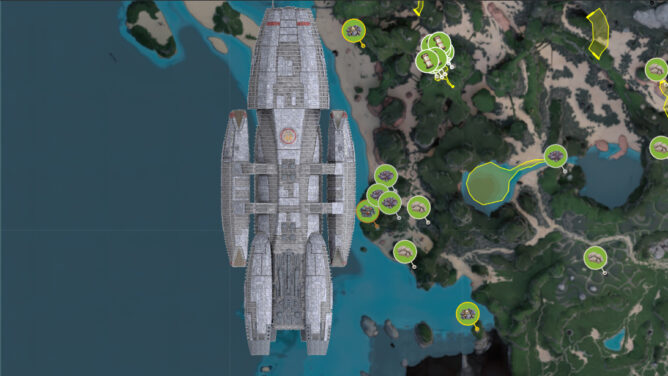
The mod is Diaspora: Shattered Armistice, still awesome today: http://diaspora.hard-light.net/ (Warning: This may fuel a desire to re-watch the BSG series again 😀).

The bridge code can be found at https://github.com/bekopharm/xr_to_opentrack (pending changes).

It works with the Breezy GNOME xr_driver: https://github.com/wheaney/breezy-desktop (but the Vulkan one works probably too but that’s untested). It should also be compatible with other glasses that have IMU for Breezy available.

Update: hodasemi wrote a Rust connector based on the idea that works without Breezy: https://github.com/hodasemi/xr_to_opentrack_rs – comes with a systemd service file so it can run in the background. Once installed the only step left to do is fire up OpenTrack 🤘

I know most of you won’t care or see why this is of interest but I got another game, this time No Man’s Sky, working in (side-by-side) mode using [on Linux PC] 🤓

https://www.youtube.com/watch?v=_VGv_h097mI

Steam start parameters are a little bit different though, once ReShade was configured for Vulkan:

WINEDLLOVERRIDES="d3dcompiler_47=n;vulkan=n,b;vulkan-1=n,b"  gamescope -h 2160 -w 3840 -H 1080 -W 3840 --scaler stretch -f -e -- %command%

Apparently there is an open bug for ReShade and Vulkan via Proton but frankly I didn’t quite get the details – it just worked for me: https://github.com/kevinlekiller/reshade-steam-proton/issues/6 – YMMV.

As usual: Viture or XReal users can probably just press fullscreen after switching into SBS mode to watch this. Others may need an external player to sort it out – I sure love delivering to the absolute niche of the niche [of yet another niche] 🤷

I know most of you won’t care or see why this is of interest but I got another game, that I like a lot, working in (side-by-side) mode yesterday using [on Linux PC] 🤓

https://www.youtube.com/watch?v=tWnFRPkomzQ

Steam start parameters are a little bit different though, once ReShade was configured for DirectX11:

WINEDLLOVERRIDES="d3dcompiler_47=n;d3d11=n,b" gamescope -h 1080 -w 1920 -H 1080 -W 3840 --scaler stretch -f -e -- %command%

I’m considering to start an extra channel for the SBS stuff since this probably just annoys most people. In fact downvotes started to pile up but is it my fault that YT (or PeerTube for that matter) doesn’t support this in any sane way? I know about frame packed versions now but that only results in badly automated out of focus Anaglyph 3D videos nobody can enjoy.